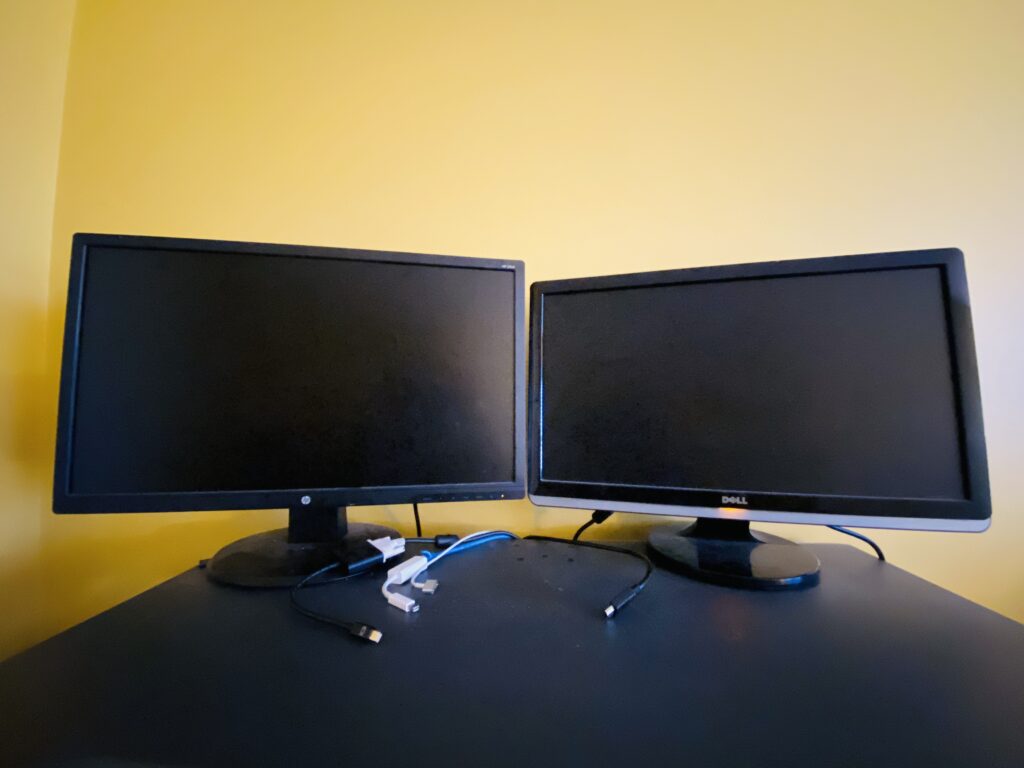
Enhancing productivity can be a game-changer when you connect dual monitors to your laptop, regardless of whether you use a MacBook or a Windows laptop. To begin this process, it is essential to familiarize yourself with the input options on your laptop, such as USB, USB-C, HDMI, and Firewire ports, as they will determine the necessary connections.
Consider the desired behavior of your dual monitors. Rather than duplicating your laptop view on each monitor, most individuals prefer extending their current laptop screen onto the dual monitors. This allows for a seamless, continuous landscape view where the mouse can move from one side of the monitor to the other. While there may be situations where a duplicate laptop display on the extended screen is desired, such as during a presentation, this article will primarily focus on expanding the laptop’s screen space to the dual monitors.
Connecting your monitors to your laptop
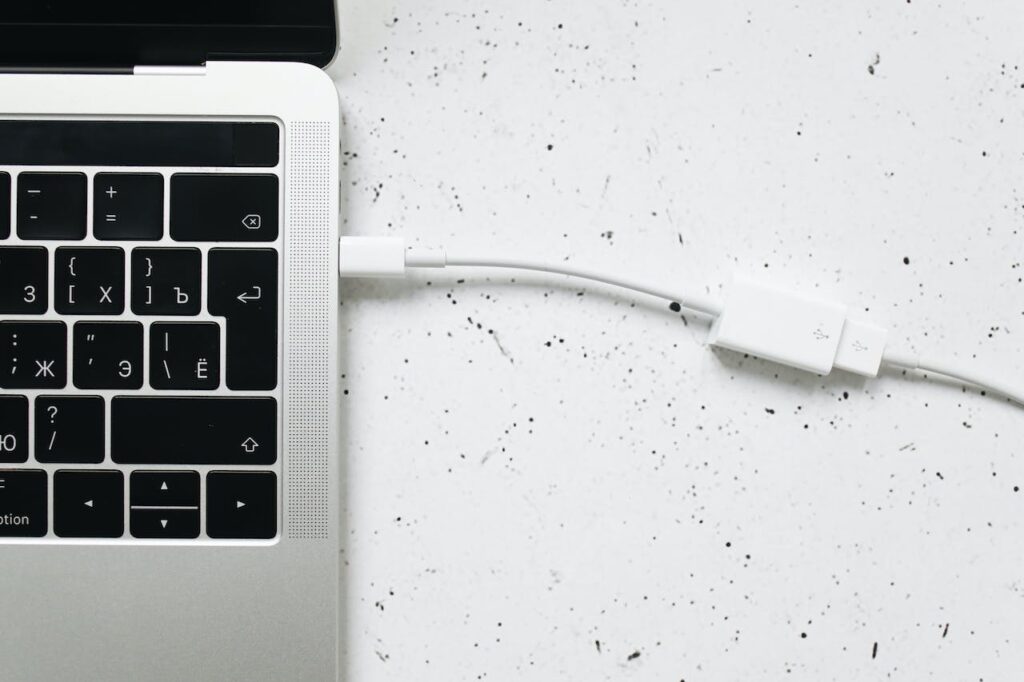
The first step in getting our laptop to extend to our dual monitors is to connect each monitor to your laptop. Please keep in mind that each connection should be a separate cable to your laptop. We don’t want to connect both monitors to one input. There are input hubs which can connect multiple monitors to 1 input, but you will find that it won’t be able to combine your laptop view as one, it will send the same view to both of your monitors. Hubs are typically best for giving presentations to a live audience where both your laptop and secondary monitor are synced.
To connect your monitors to your laptop, you will need to identify the available ports on both your laptop and monitors. Common ports include HDMI, VGA, DVI, and DisplayPort. Ensure that you have the necessary cables for each port type.
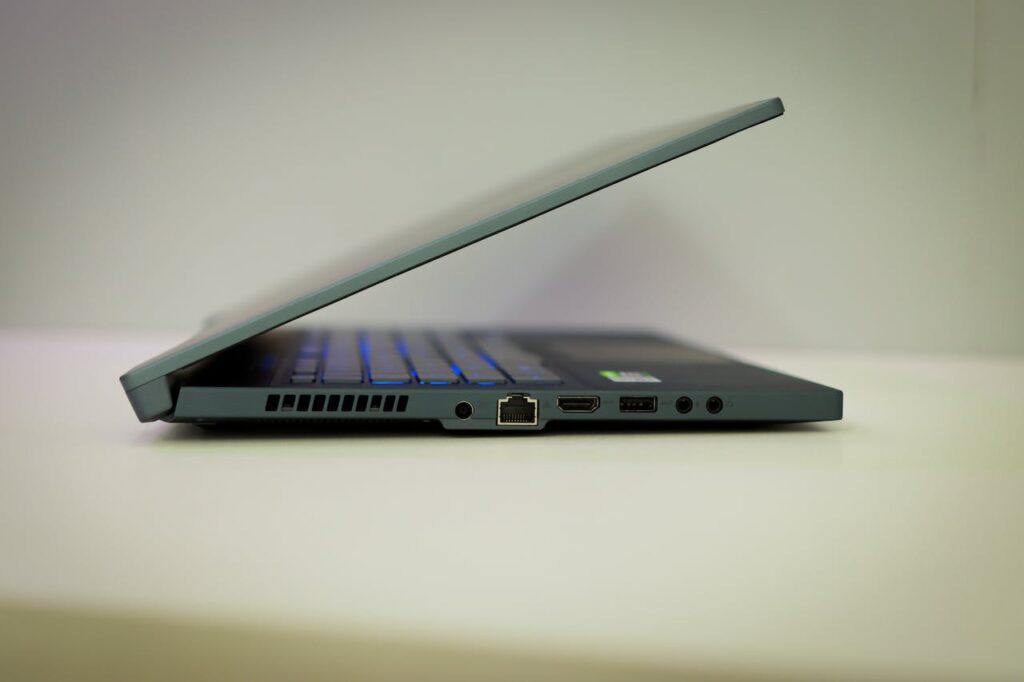
Take a look at the sides of your laptop and take note of what types of inputs you have. Most laptops should have at least 1 or more HDMI ports. Then look at your monitors and take note of the types of output connections it has. Some typical types of output connections might be RGB, MiniDisplay Port DVI, HDMI, etc. Please refer to your monitors manual for a more detailed description of your monitors output.
Once you determine the types of connections that your laptop and monitors have, it’s time to do some searching. In some cases, your monitor’s output will be the same as your laptop’s input, such as being HDMI at both ends. Other times, your input and output connections will be different. In either case, you will need to search for a cable that has both types of connections. Go to amazon and start your search by entering your monitor’s output connection and your laptop’s input connection. An example of this could be, “hdmi to hdmi adapter”. Or if you have different input/ouput connections, you might need to search for, “rgb to hdmi adapter”. Below is an example of an adapter which connects a laptop with a Mini DisplayPort connection to a monitor with a DVI connection.
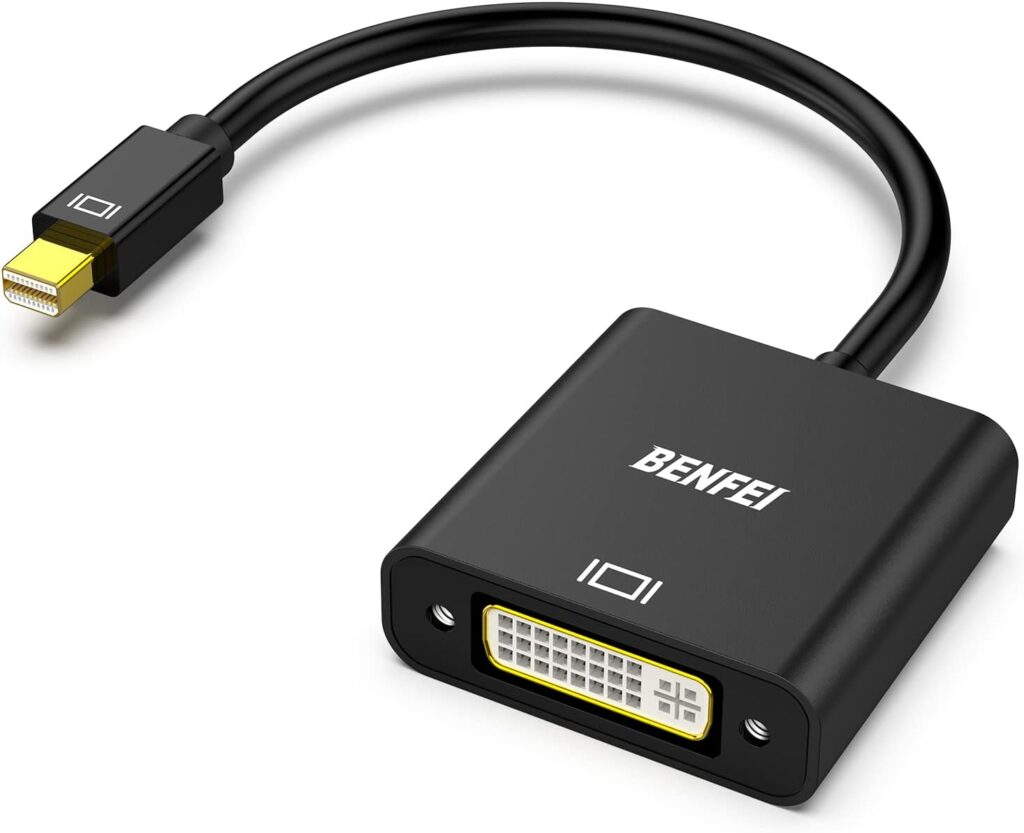
Repeat the previous step and find another adapter for your second monitor. Remember, each monitor should have its own adapter that connects to your laptop in order to achieve a unison view of your laptop on your dual monitors.
Once you have the appropriate cables, plug one end into the corresponding port on your laptop and the other end into the corresponding port on the monitor. Repeat this process for the second monitor, using a different port on your laptop if available.
After connecting the monitors, you should see your laptop’s desktop view expanded to your dual monitors! You’re almost there. The final step will be to close the lid of your laptop because you don’t want your laptop’s lid to be in the way of your view. Once you close your lid, your dual monitor’s may blink a few times as they are adjusting to a new view.
After the blinking of the dual monitors ceases, you will have an expanded desktop area spanning across both monitors, granting you more screen real estate.
Connecting an External Keyboard
Once you close the lid of your laptop, you will lose access to your laptop’s keyboard and will need to connect an external keyboard. There are a variety of external keyboards to choose from. You can decide whether you want to connect it wirelessly or via a USB connection. Below are a few examples of external keyboards found on amazon:
Small Wireless Ergonomic Keyboard


Premium Wireless Bluetooth Keyboard for iMac, MacBook, Mac Pro


Once your external keyboard is connected, this will be the last step in getting your dual monitor setup correctly.
Disclosure: Some of the links above are affiliate links. This means that, at zero cost to you, I will earn an affiliate commission if you click through the link and finalize a purchase.